$ su postgres
Introduction
This section contains the introduction of JDV and JDV workshop.
What is JDV
Red Hat JBoss Data Virtualization (JDV), formerly known as Red Hat JBoss Enterprise Data Services Platform (EDS), is a complete data provisioning, federation, integration and management solution that enables organizations to gain actionable and unified information. Red Hat JBoss Data Virtualization enables agile data utilization in three steps:
-
Connect: Access data from multiple, heterogeneous data sources.
-
Compose: Create reusable, business-friendly logical data models and views by combining and transforming data.
-
Consume: Make unified data easily consumable through open standard interfaces.

JDV includes:
-
Tools for creating data views that are accessible through standard protocols. For those who are already familiar with JDV one of the tools is the Teiid Designer plug-in for Red Hat JBoss Developer Studio (JBDS).
-
A robust runtime environment that provides enterprise-class performance, data integrity, and security (the JDV Server, which executes as a process within the Red Hat JBoss Enterprise Application Platform (EAP)).
-
A repository for storing metadata (ModeShape)
JDV is based on the following community projects:
-
Teiid (http://www.jboss.org/teiid)
-
Teiid Designer (http://www.jboss.org/teiiddesigner)
-
ModeShape (http://www.jboss.org/modeshape)
The figure below depicts the architectural overview of JDV:
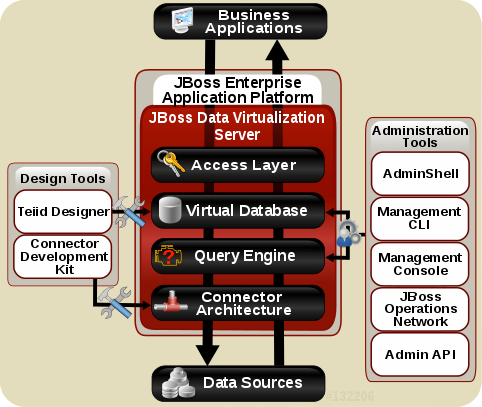
| Component | Description |
|---|---|
Query Engine |
The heart of JDV Server is a high-performance query engine that processes relational, XML, XQuery and procedural queries from federated datasources. Features include support for homogeneous schemas, heterogeneous schemas, transactions, and user defined |
Embedded |
An easy-to-use JDBC Driver that can embed the Query Engine in any Java application. |
Server |
An enterprise ready, scalable, manageable, runtime for the Query Engine that runs inside JBoss EAP that provides additional security, fault-tolerance, and administrative features. |
Connectors |
JDV Server includes a rich set of Translators and Resource Adapters that enable access to a variety of sources, including most relational databases, web services, text files, and ldap. Need data from a different source? Custom translators and resource adaptors can easily be developed. |
Tools |
JDV Server includes development and administration tools to
|
What is expected of you
Please know that all care was made in creating this user guide, but all screen shots and steps along the way might be off by just a little so please be patient with any issues.
Please feel free to raise your hands if you have any questions. Also feel free to ask why it is you are doing something, or if something doesn’t feel right.
Prerequisites
Please make sure that the following software is installed and configured:
-
Minimal version 1.7 of OpenJDK or Oracle JDK
-
Git
-
PostgreSQL server, MariaDB server or MySQL server
-
If you are using a remote database the PostgreSQL, MariaDB or MySQL client tools should be used.
More information on the JDV prerequisites can be be found in the Red Hat JBoss Data Virtualization documentation.
|
Note
|
Prerequisites with respect to PostgreSQL server, MariaDB server or MySQL server are optional. We will use the embedded H2 database which is installed in the JDV environment by default as part of JBoss EAP for you convenience. |
Setup demo database environment (OPTIONAL)
In order to use the labs we need to prepare one database. Out of the box we provide H2 embedded databases for your convinience. We provide some database SQL scripts as well for PostgreSQL, MariaDB and MySQL to load initial data into the database of your choice. In the next paragraph we will describe how to install the database and how to load the demo data into the database.
|
Tip
|
Use the database you prefer, it’s not required to install one of the databases. By default we will use the H2 embedded database. |
Setup PostgreSQL
Installation
The easiest way to install PostgreSQL is to use the pre-built binary packages which are available for a number of different operating systems. See http://www.postgresql.org/download/ for more information and downloads. Post-install steps:
-
If *nix or Mac OS X switch to user postgres or other OS user who is able to use psql command to connect to the PostgreSQL database.
-
Go to the DVWorkshop/dv-docker/demo directory and run the following command:
$ psql -a -f financials-psql.sql
-
If Step 2 is successfully executed the the PostgreSQL environment contains the following databases. Hint: start the psql command line utility and type the “\l” to list the databases in PostgreSQL database.
$ psql
psql (9.4.4, server 9.4.9)
Type "help" for help.

postgres=# \l
                               List of databases
     Name      |  Owner   | Encoding  | Collate | Ctype |   Access privileges
---------------+----------+-----------+---------+-------+-----------------------
 apaccustomers | postgres | SQL_ASCII | C       | C     |
 brokerinfo    | postgres | SQL_ASCII | C       | C     |
 eucustomers   | postgres | SQL_ASCII | C       | C     |
 postgres      | postgres | SQL_ASCII | C       | C     |
 products      | postgres | SQL_ASCII | C       | C     |
 rhq           | rhqadmin | SQL_ASCII | C       | C     |
 template0     | postgres | SQL_ASCII | C       | C     | =c/postgres          +
               |          |           |         |       | postgres=CTc/postgres
 template1     | postgres | SQL_ASCII | C       | C     | =c/postgres          +
               |          |           |         |       | postgres=CTc/postgres
 uscustomers   | postgres | SQL_ASCII | C       | C     |
(9 rows)

postgres=# \q
Setup MariaDB
Installation
The easiest way to install MariaDB is to use the pre-built binary packages which are available for a number of different operating systems. See https://downloads.mariadb.org for more information and downloads.
|
Note
|
there is no binary package available for Mac OS X users, but it is possible to install MariaDB using the homebrew package described on this page https://mariadb.com/kb/en/mariadb/building-mariadb-on-mac-os-x-using-homebrew/ |
Post-install steps
-
After the installation completes and using *nix, start MariaDB with:
$ sudo /etc/init.d/mysql start
-
Go to the DVWorkshop/dv-docker/demo directory and tun the following command as depicted in the picture below.
$ sudo mysql < financials-mysql.sql
-
If Step 2 is successfully executed the MariaDB environment contains the following databases.
sudo mysql
Password:

mysql> show databases;
+--------------------+
| Database           |
+--------------------+
| information_schema |
| apaccustomers      |
| brokerinfo         |
| eucustomers        |
| mysql              |
| performance_schema |
| products           |
| test               |
| uscustomers        |
+--------------------+
9 rows in set (0.02 sec)

mysql> exit
Bye
Setup MySQL
Installation
The easiest way to install MySQL is to use the pre-built binary packages which are available for a number of different operating systems. See http://dev.mysql.com/downloads/mysql/ for more information and downloads.
Post-install steps
-
If *nix or Mac OS X go to the /usr/local/mysql directory and start mysqld_safe
$ cd /usr/local/mysql
$ sudo ./bin/mysqld_safe
-
Go to the DVWorkshop/dv-docker/demo directory and tun the following command as depicted in the picture below.
$ sudo /usr/local/mysql/bin/mysql < financials-mysql.sql
-
If Step 2 is successfully executed the MariaDB environment contains the following databases.
sudo /usr/local/mysql/bin/mysql
Password:

mysql> show databases;
+--------------------+
| Database           |
+--------------------+
| information_schema |
| apaccustomers      |
| brokerinfo         |
| eucustomers        |
| mysql              |
| performance_schema |
| products           |
| test               |
| uscustomers        |
+--------------------+
9 rows in set (0.02 sec)

mysql> exit
Bye
The labs will use the following databases:
-
apaccustomer
-
brokerinfo
-
eucustomers
-
products
-
uscustomers
Congratulations, you have completed this introduction lab.