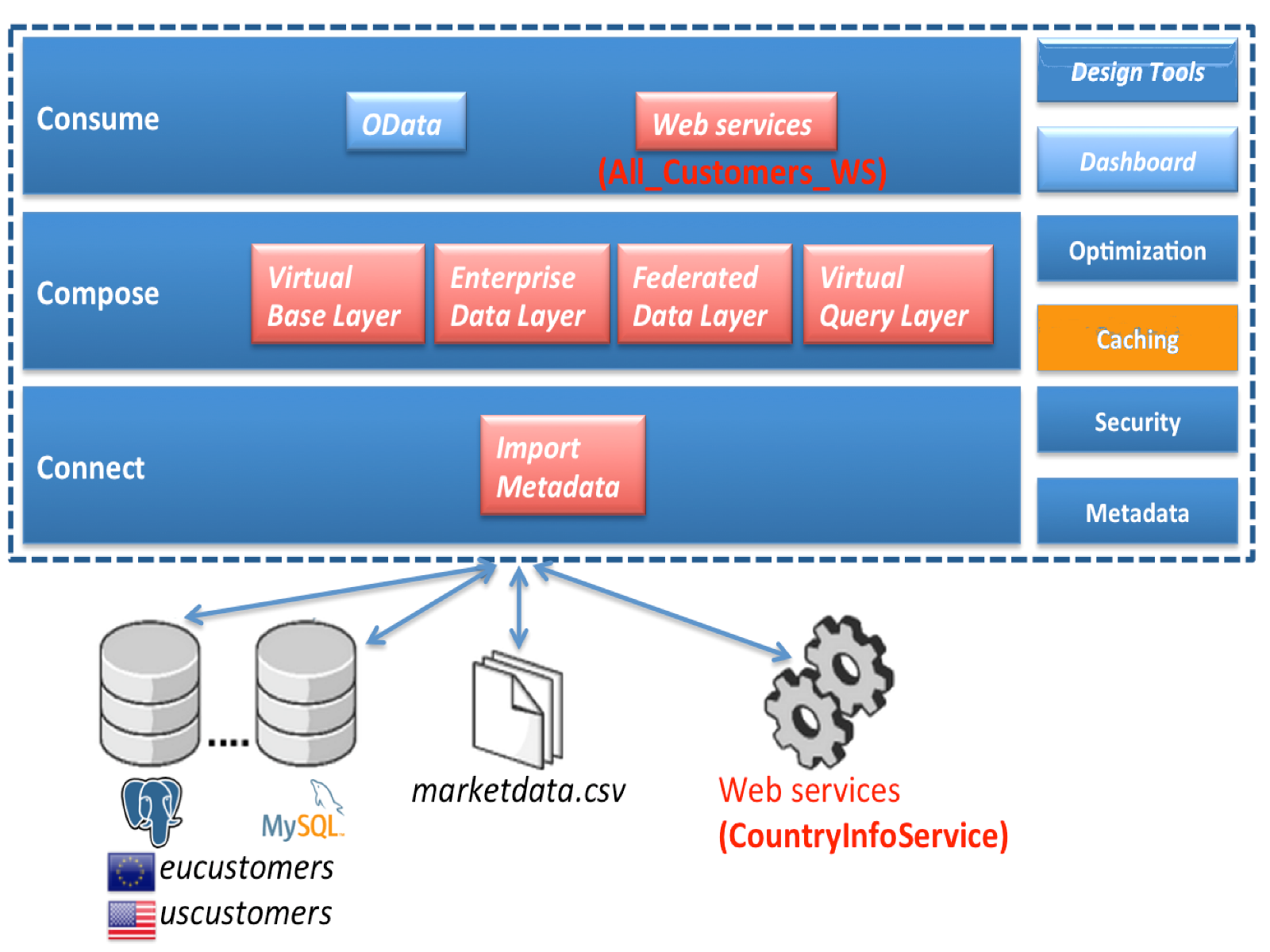
Caching in JBoss Data Virtualization
We have been setting up models and have been doing querying directly or via federated queries to the undrelying datasources, we will now look at how we can do caching in JDV.
Where are we?
Prerequisites
-
Sample Teiid project
-
One or more source models created
-
One or more view models created and the views (virtual tables) that require caching/materialization identified
Result Set Caching
Straight from the documentation the definition of Result Set Caching is
"User query result set caching will cache result sets based on an exact match of the incoming SQL string and PreparedStatement parameter values if present. Caching only applies to SELECT, set query, and stored procedure execution statements; it does not apply to SELECT INTO statements, or INSERT, UPDATE, or DELETE statements."
Key points to remember
-
Result set caching is enabled by default (with a default ttl)
-
The client must explicitly choose to use result set caching by passing : resultSetCacheMode=true in the JDBC URL to the VDB
-
The exact SQL string, including the cache hint if present, must match the cached entry for the results to be reused.
-
Result set caching is not transactional
-
From the web management console, one can choose to clear the result set cache of a specific VDB
-
Result set caching is not limited to memory.
Consult the documentation for more in-depth information about result set caching.
Testing Result Set Caching
Step 1: Deploy a sample VDB for testing purposes. Virtual database dvdemo.vdb will be used in this example.
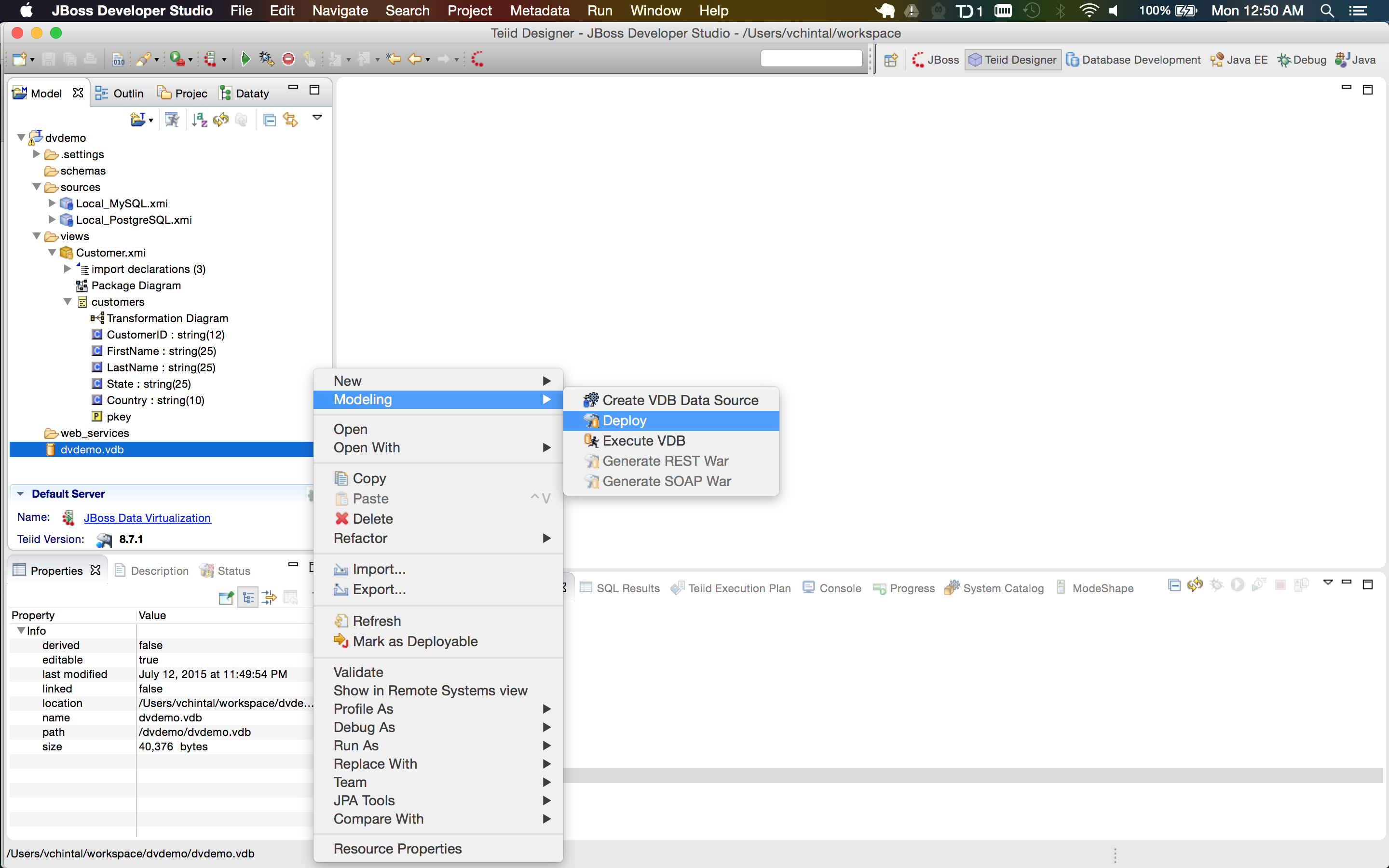
Step 2: Configure the JDBC connection to the VDB from any SQL client. We will use Database Development perspective of JBoss Developer Studio for this purpose.
-
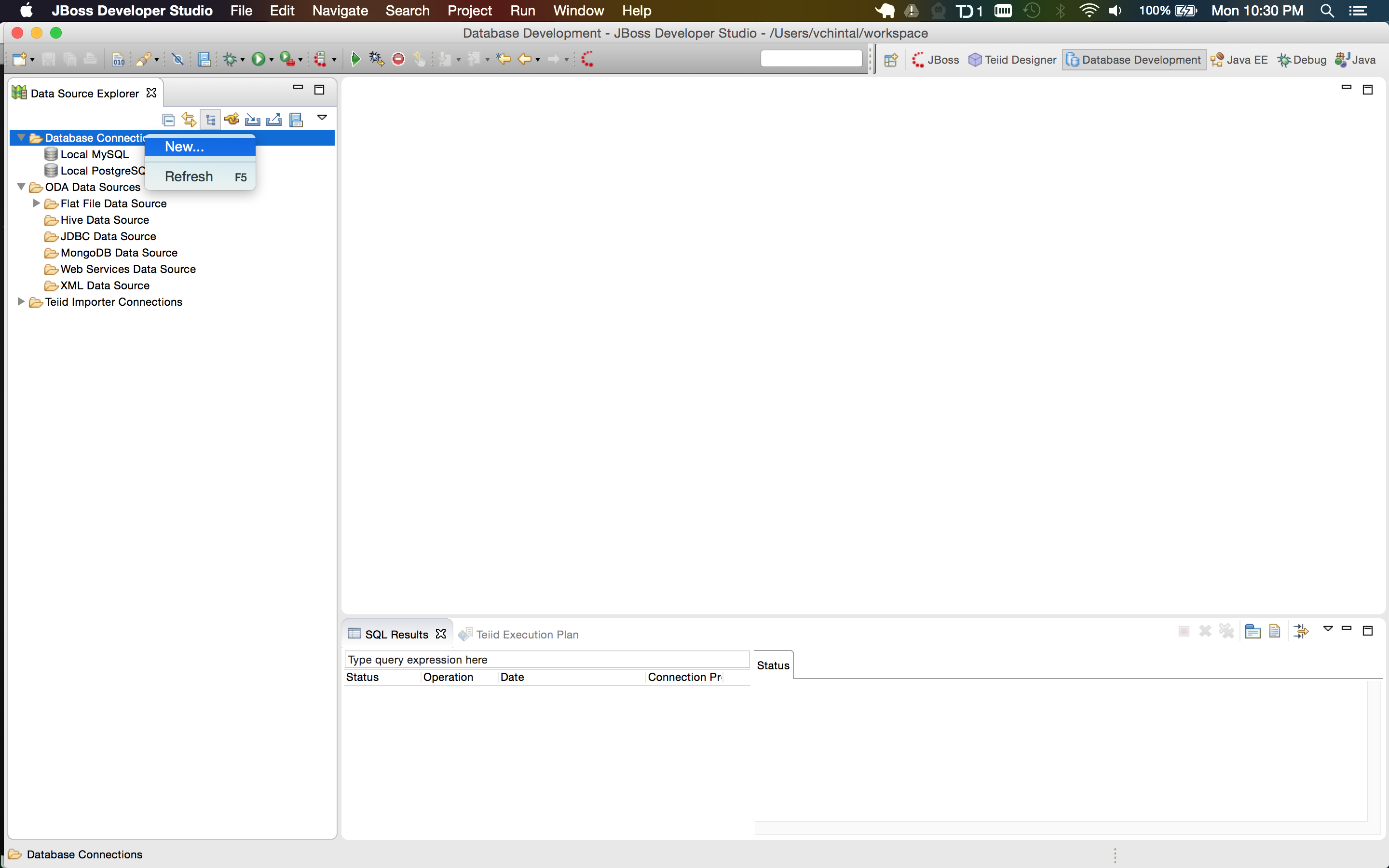
Right-click on the Database Connections and create a new connection profil
-
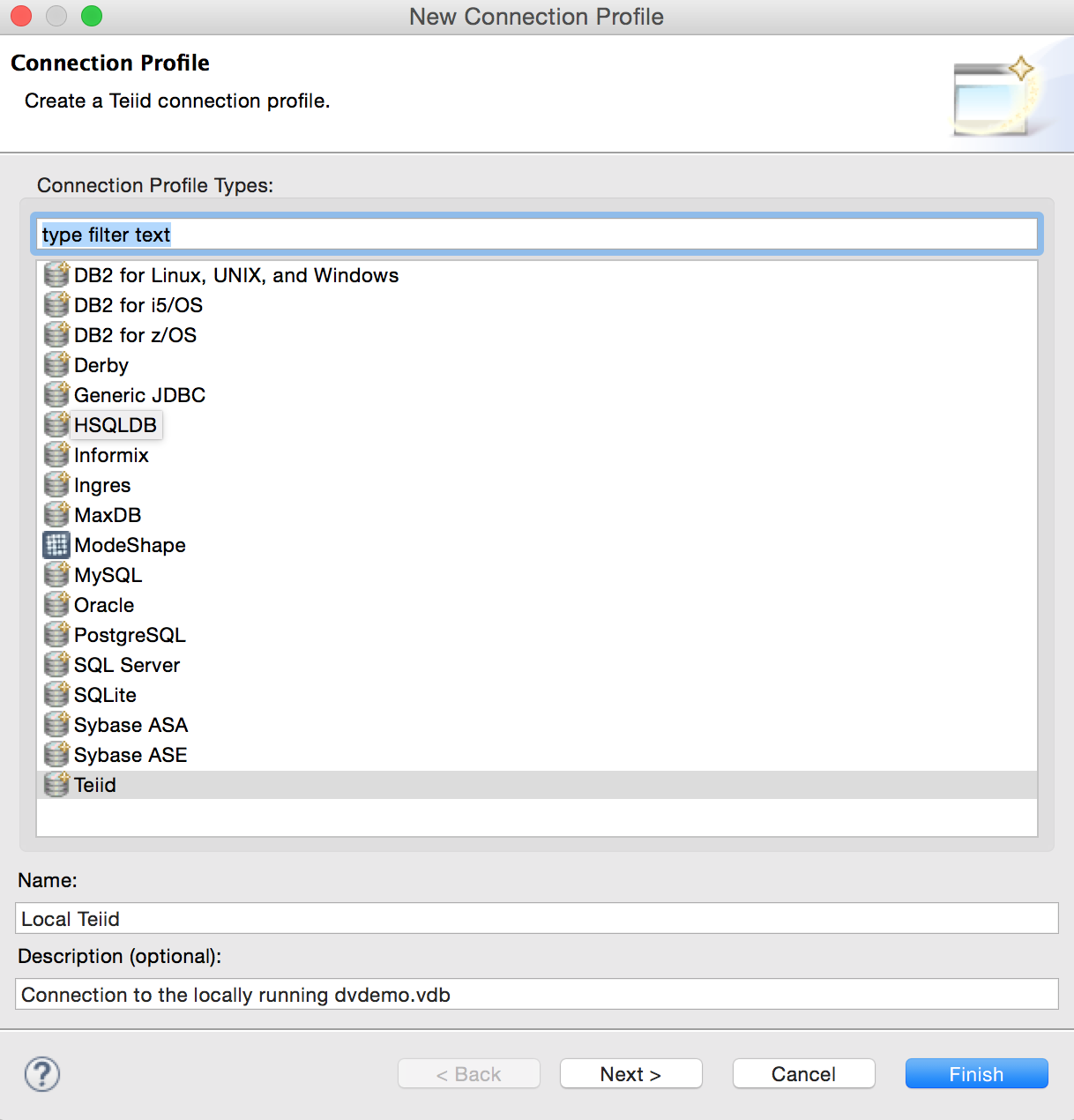
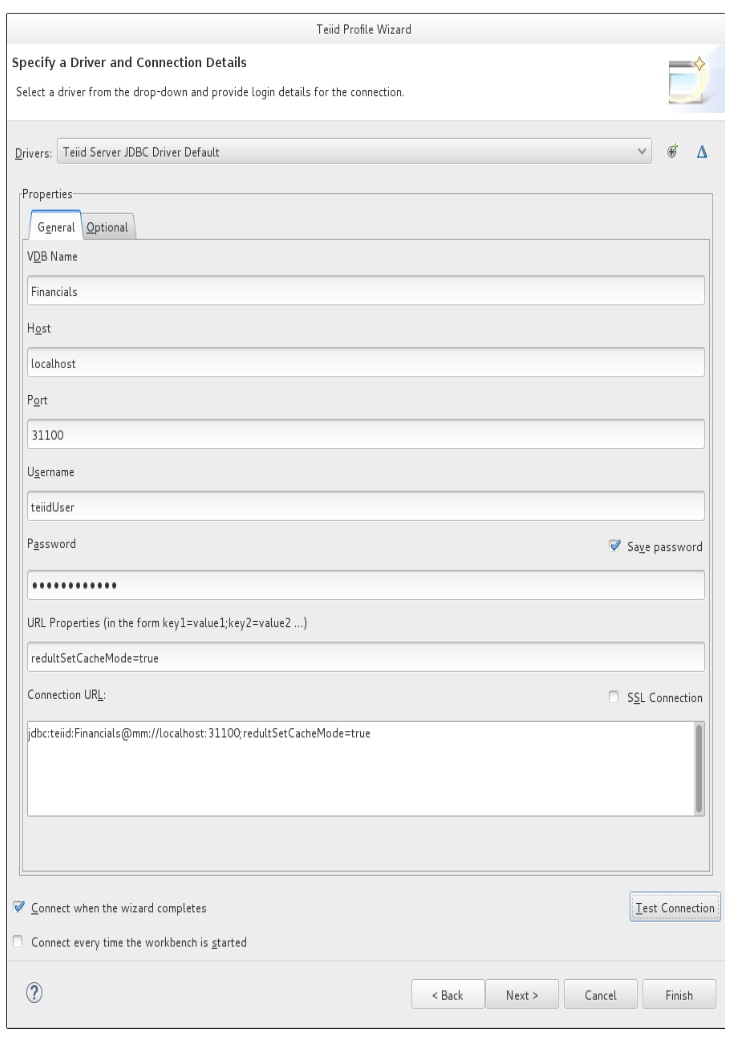
Create a new Teiid connection profile as shown in the image below and click on Next
-
Fill in the connection details to the VDB. Ensure to populate the URL property resultSetCacheMode=true. We will be using the teiidUser login for this purpose and click on Finish
Explore the Teiid connection just established and open an new SQL scrapbook to run queries
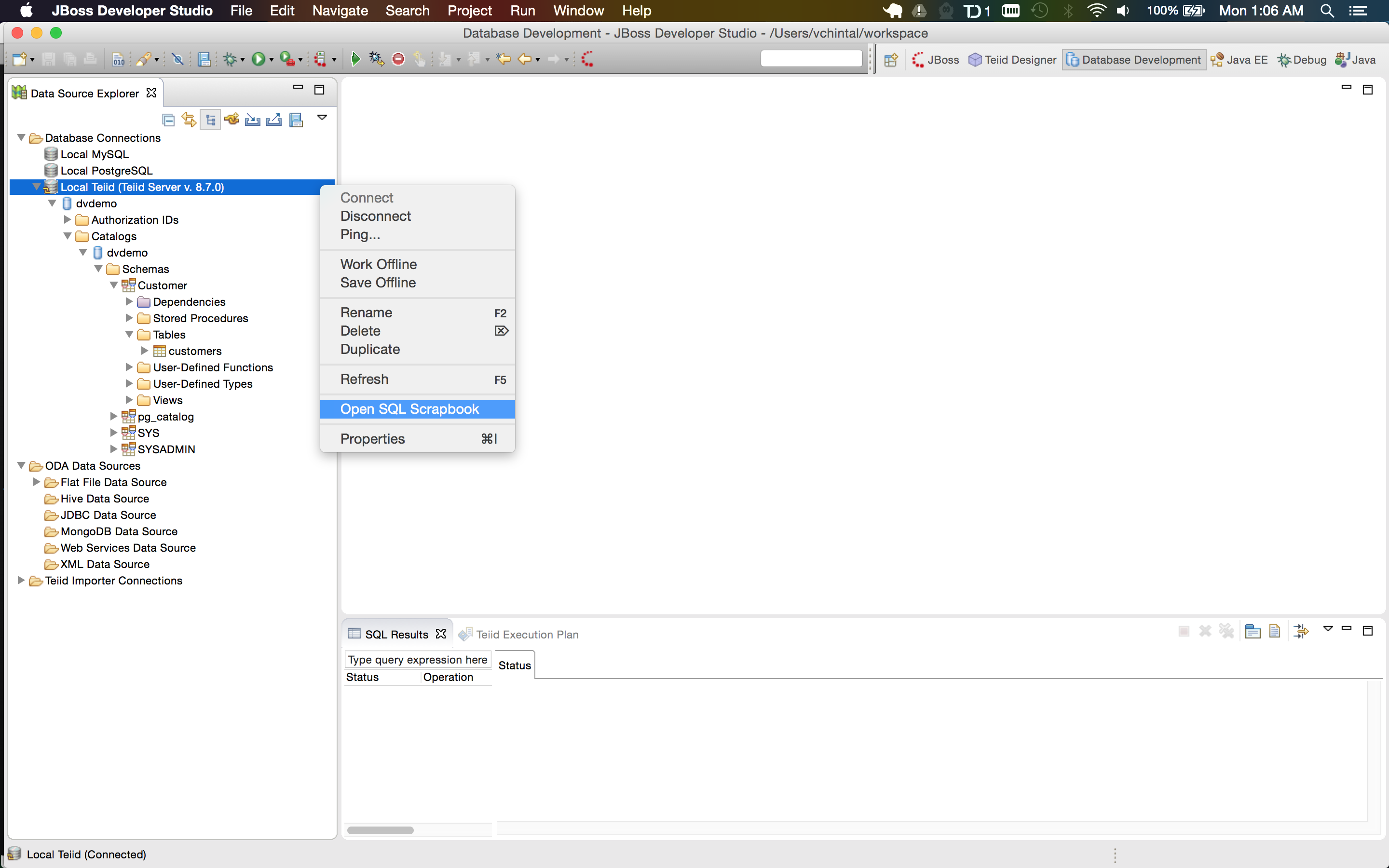
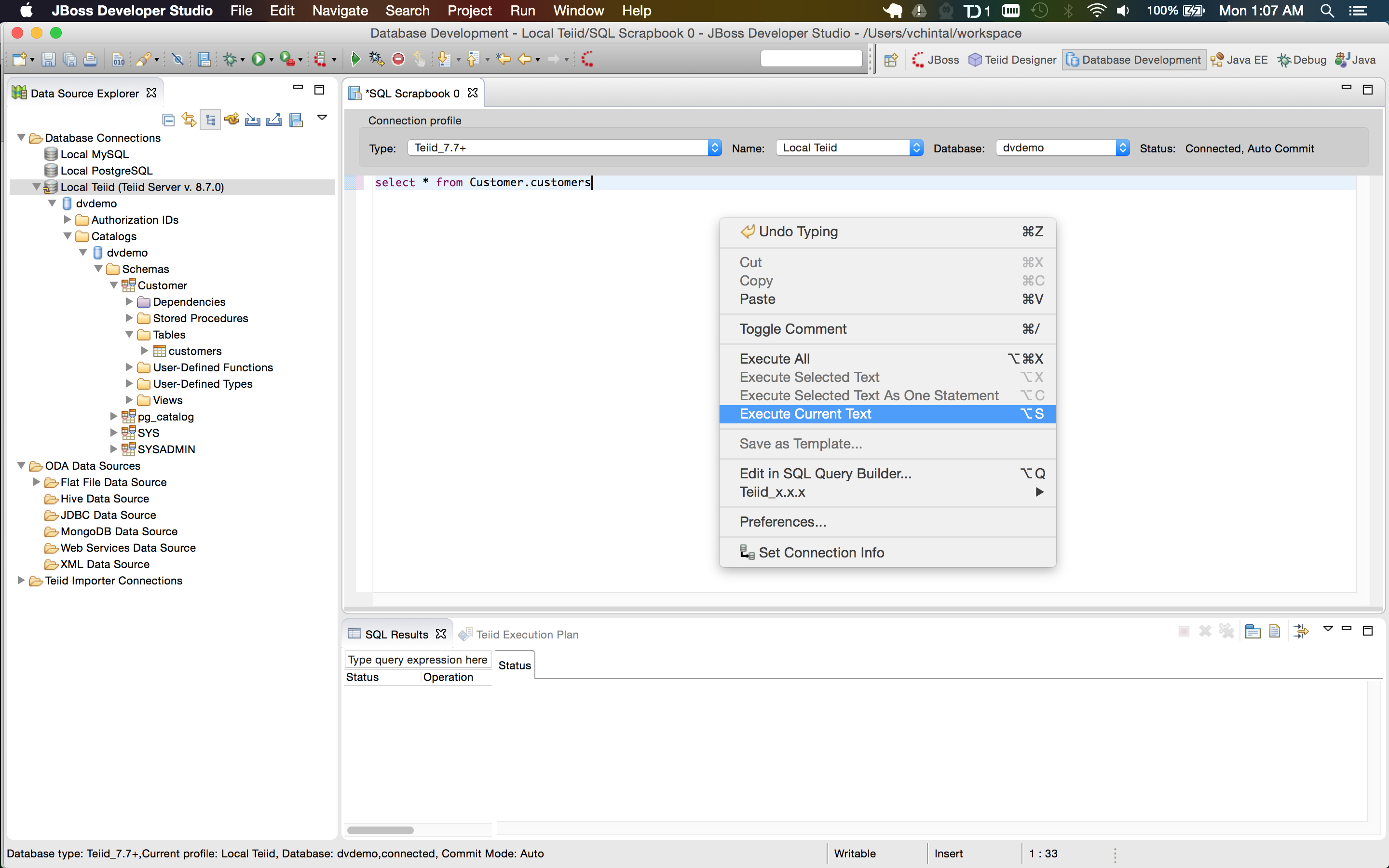
Step 3: Run queries against the VDB without any customization (such as cache hints)
-
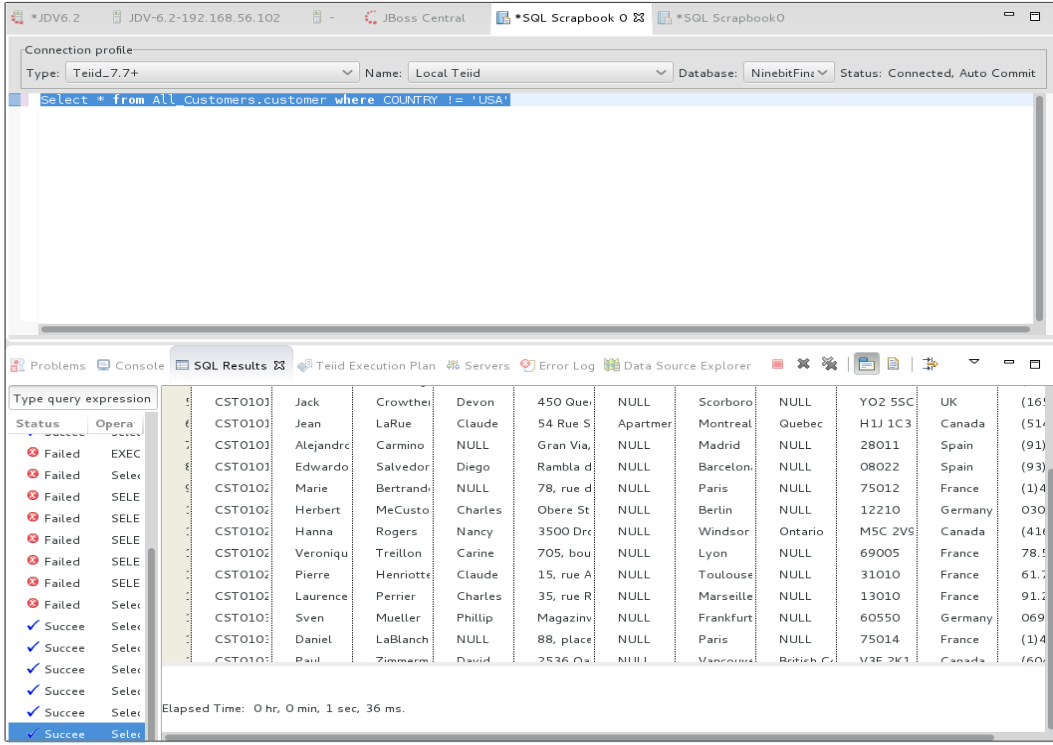
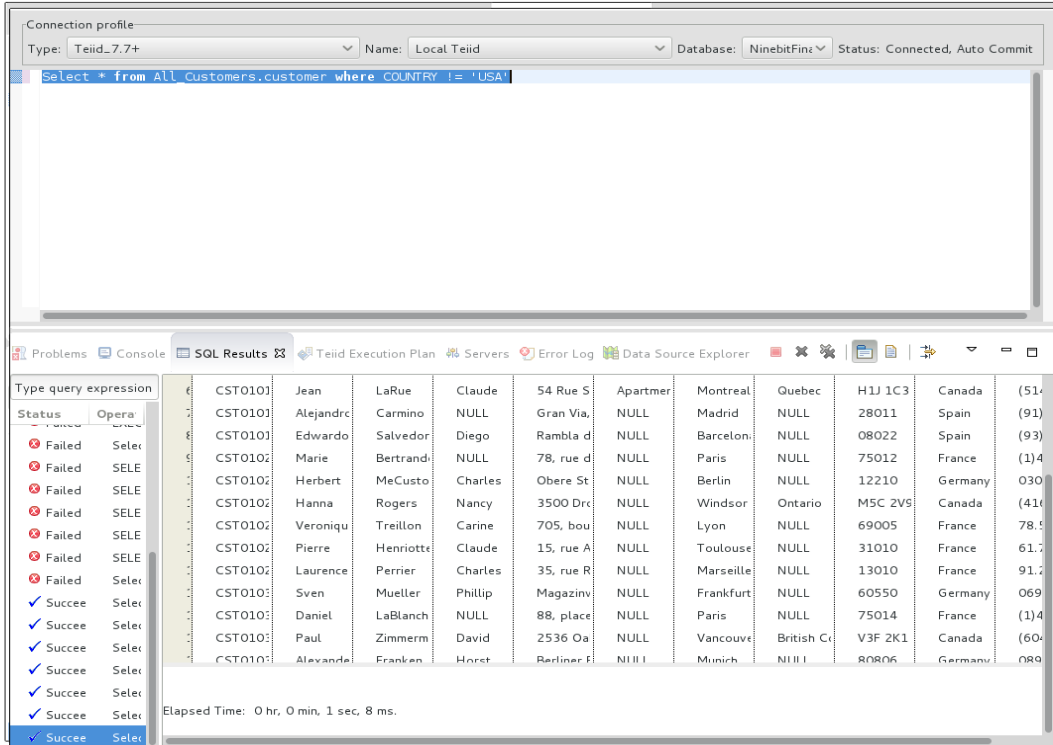
Try a plain, simple/sample query without any customization and review the status to see how long it took to run the query
Note in the image below, the status says that query took 1 sec and 36 ms
-
Re-execute the same query and check on how long it took to run the same query with default caching enabled. Based on the image below we saved 28 ms. The time saved widens as the result sets gets larger and larger.
Step 4: Run queries against the VDB with cache hints
The format of the cache hint is:
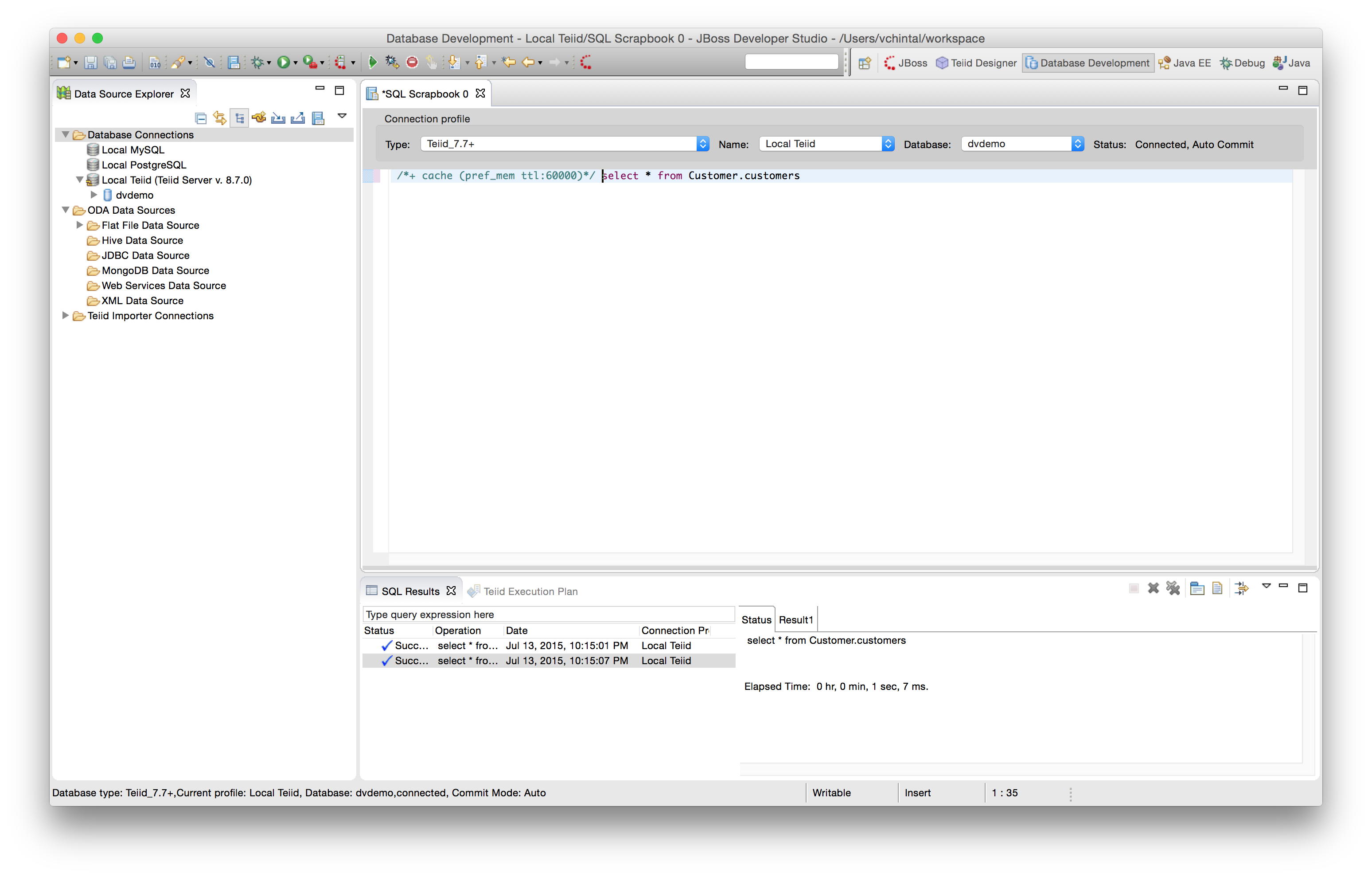
/*+ cache[([pref_mem] [ttl:n] [updatable])] [scope:(session|user|vdb)] */ select * from sample
The official documentation is more effective in explaining cache hints and options. The following images show the usage of cache hints and options.
-
Using Cache Hint
-
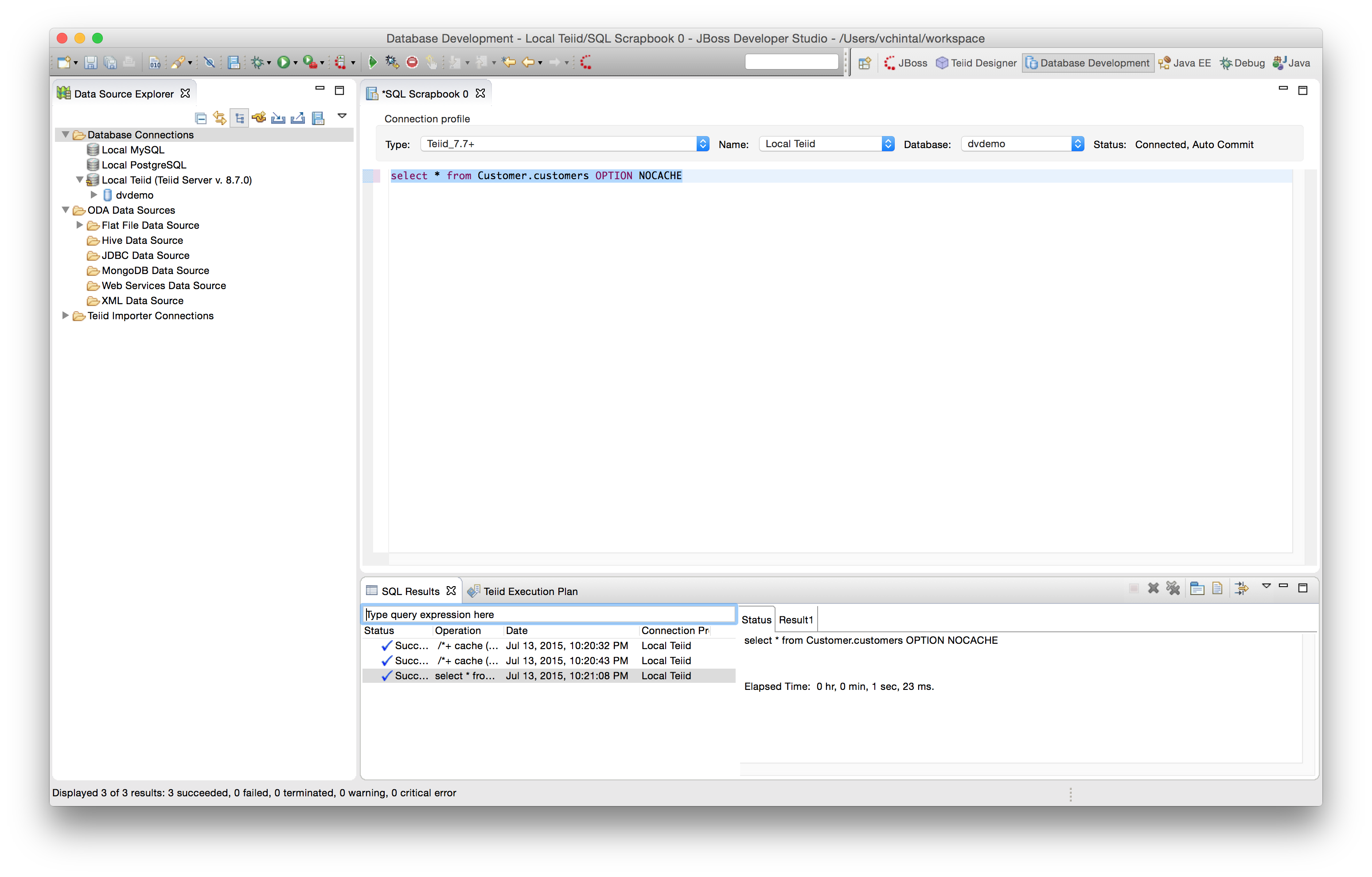
Overriding the use of cache results by appending OPTION NOCACHE to the end of the SQL query. Pay attention to the run time of the query to realize the cached results are not used
Internal Materialization
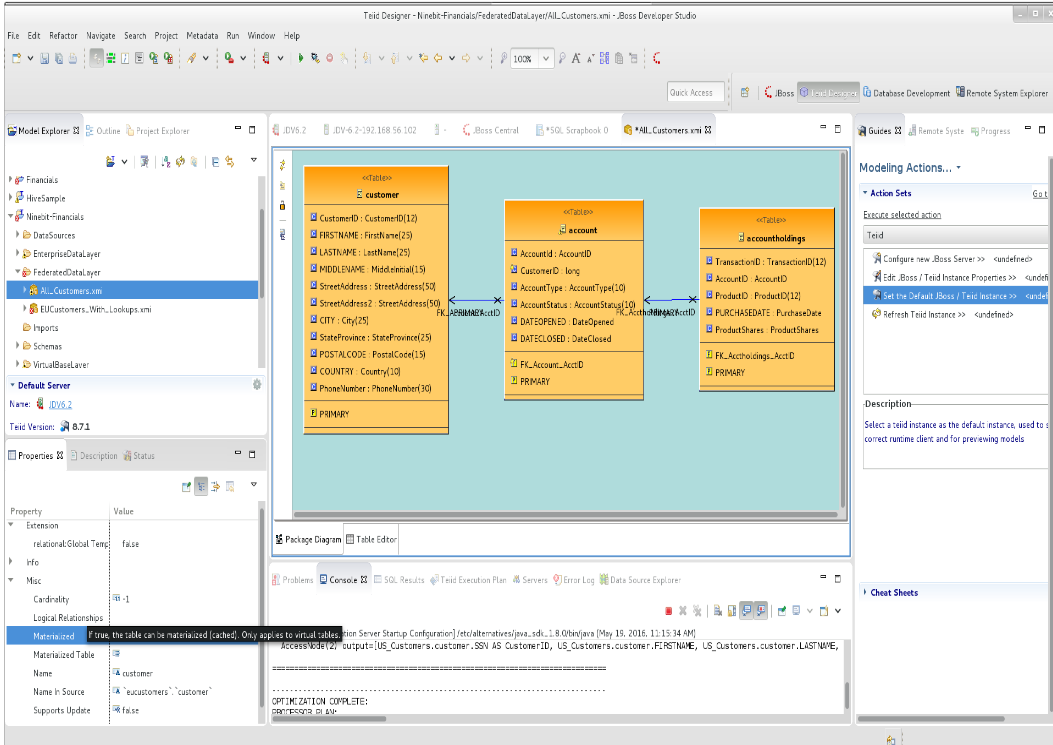
Internal materialization is caching of all records of a specific view (virtual table). Enabling Internal Materialization on a specific view is done in the Teiid Designer and before the view is packed into a VDB, as shown in the image below. Focus on the field the Yellow tool-tip is pointing to; the Materialized property of the view is a drop-down with two options true/false. Enabling Internal Materialization is as simple as setting this property to true.
Key points about Internal Materialization
-
If the tranformation query behind the view has no cache hints, then the results are cached for the lifetime of the JVM
-
One can assign a cache hint to the transformation query behind the view to enable cache expiry after a defined ttl (time to live) is prepended to the Virtual Model transformation (eg. /+ cache (pref_mem ttl:6000)/ SELECT …") . Note : If a new query arrives after the cache contents have expired, an asynchronous job refreshes the cache, till that job is complete the query will not be blocked and stale entries will be served
-
One can invalidate the cache on demand using one of the two ways below. Invalidation will block the queries until the cache is refreshed.
-
Using the web based admin console of the DV runtime server. Focus on all the selected/highlighted entries in the image
-
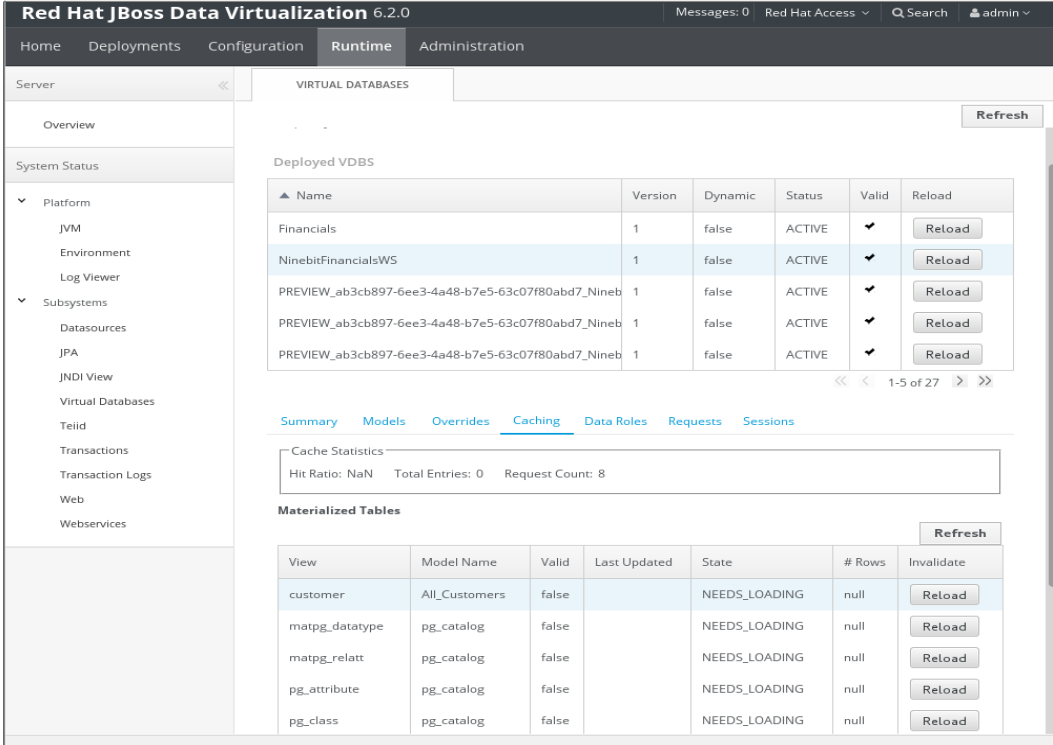
-
Connecting to the deployed VDB via a SQL client and executing the command of the following form:
EXEC SYSADMIN.refreshMatView(viewname=>'Customer.customers', invalidate=>true)
Testing Internal Materialization
Testing internal materialization is only possible after bundling the materialized into a VDB and deploying it. Once deployed, just as shown above with any SQL client, any kind of SELECT query (with whatever WHERE clause conditions) against the view will fully populate the cache.
Subsequent queries then take advantage of the cached records.